Sales Module Guide
Manage your sales transactions easily. This guide explains how you record money coming in from customers, and how we automatically handle the tax calculations for you.
How the Sales Module Works
The Sales page is where you record everything you sell to your customers. When you enter a sale, the system doesn't just save it; it automatically figures out how much tax you owe the government and updates your business records instantly.
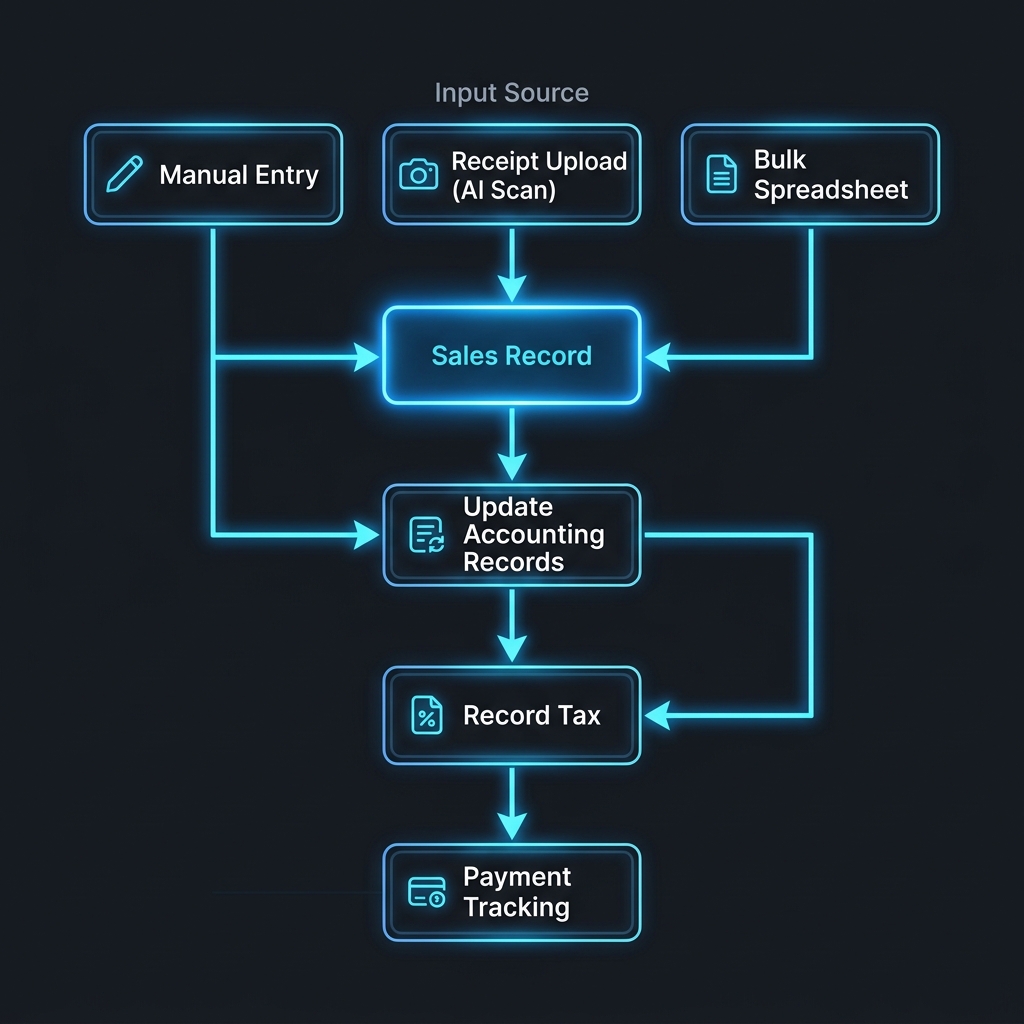
Visualizing the automated sales process: Entry → Update Accounting Records → Record Tax → Payment Tracking.
1. The Information We Track
When you enter a sale, we securely save a few important details to make sure you are always ready for a tax audit:
- Who bought it: You can save the Customer's Name and their Tax ID (TIN). This helps track who owes you money.
- The Receipt Number: The number printed on the receipt from your physical cash register machine (the FS Number).
- The Money Breakdown: We clearly split the total amount into the "actual price of the item" and the "tax amount collected".
- Tax Category: We let you mark if a sale includes VAT, is tax-free (Exempt), or was sold to another country (Export). This tells the system exactly where to put it on your monthly tax return.
2. Automatic Bookkeeping
You don't need to be an accountant to use Gibir-Negari. When you save a sale, we automatically write it in your accounting books in the background.
For example, if you sell something for 1,150 Birr (which includes 150 Birr in tax):
- We record that a customer owes you 1,150 Birr.
- We record that your business earned 1,000 Birr in revenue.
- We record that you owe the government 150 Birr in tax.
If you ever delete a mistake, we safely undo the math so your books are never messed up.
3. When Big Companies Hold Back Your Tax (VAT Withholding)
In Ethiopia, some large companies and government offices are required to keep half of the VAT they owe you and pay it directly to the tax office themselves. Here is how we handle it:
- You enter the sale normally, exactly as it appears on your cash register.
- If you sold to a large organization that keeps half the VAT, you tell the system how much they kept and their Tax ID (TIN).
- Our system is smart enough to reduce the amount the customer owes you, and instead records that the government owes you credit for that tax.
- We automatically fill out the special form required on the government's tax website at the end of the month.
4. Tracking Who Paid You
When you first make a sale, the system assumes the customer hasn't paid yet (unless it's a cash sale).
- You can easily log when a customer pays you, even if they only pay half now and half later.
- You can record if they paid in Cash or into your Bank Account.
- Once they pay the full amount, the system automatically marks the invoice as "Paid" and stops reminding you about it.
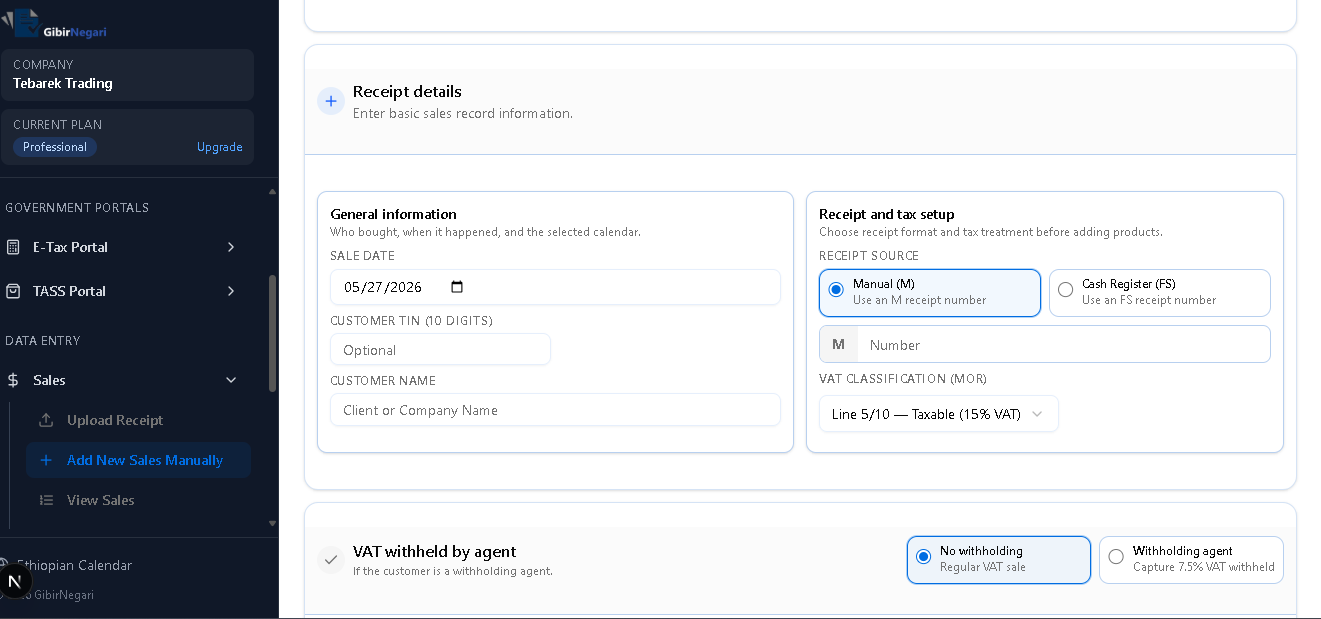
The Sales interface where you record new invoices and manage unpaid bills.
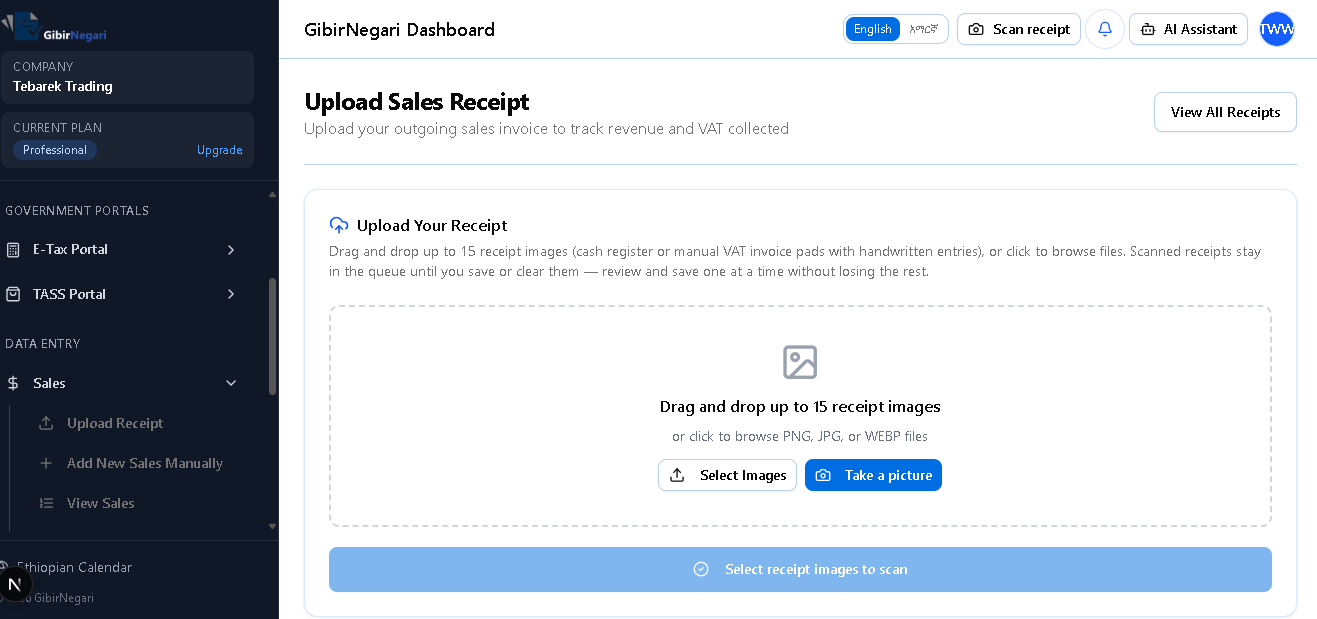
The Sales Upload interface for bulk processing multiple invoices at once.
5. Step-by-Step Operations
Here are the common operations you will perform within the Sales module, along with the steps and navigation links to get started.
ACreate a Single Sale Manually (Sales Entry)
The Sales Entry form handles complex tax mathematics automatically based on your business type (VAT or TOT). Follow these steps to record a sale:
- Start the Entry: Navigate to the Sales Record Page. Choose "Manual Entry".
- Basic Details:
- Select the Sale Date using either the Ethiopian or Gregorian calendar picker.
- Enter the Customer Name and their 10-digit TIN (optional, but recommended).
- Enter the Receipt Number (FS Number) exactly as printed on your cash register machine.
- Choose the Tax Method:
- If your business uses VAT: Select the VAT Classification.
- Taxable (15%): Standard rate.
- Zero-Rated (0%): E.g., for exports.
- Exempt (0%): For non-taxable goods/services. - If your business uses TOT (Turnover Tax): The tax rate is selected per-item in the next step (either 2% for goods or 10% for services).
- If your business uses VAT: Select the VAT Classification.
- Add Line Items: For each item sold, click "Add Item" and enter:
- Description, Quantity, and Unit Price.
- Automatic Math: The system instantly calculates the Total Value, Tax Amount, and Gross Value based on your selected Tax Method.
- Income Withholding Tax (3%): If the transaction is subject to the standard 3% income withholding tax, you can select the 3% rate here to automatically deduct it from the payable amount.
- VAT Withholding (7.5%): If you sold to a large enterprise or government agency that is legally required to withhold half of the 15% VAT:
- Toggle "Enable VAT Withholding" at the bottom of the form.
- Enter the Withholding Agent's TIN and the special Withholding Receipt Number they provided.
- The system automatically calculates the 7.5% VAT withheld amount and records it as a tax credit owed to you by the government.
- Save: Click "Save" (or "Save & Post to Accounting" to instantly update your General Ledger).
BRecord a Customer Payment
- Go to Unpaid Sales or the main Sales Dashboard.
- Find the specific invoice the customer is paying for and click "Record Payment".
- Enter the payment amount and select the payment method (e.g., Cash, Bank).
- Click "Save Payment". The invoice will be marked as "Paid" once fully settled.
CUpload Sales in Bulk (Spreadsheet)
- Go to the Bulk Import section.
- Download the provided Excel template.
- Fill the spreadsheet with your daily or monthly sales data.
- Upload the file back into the system. It will validate the data and save all sales at once.
DScan a Sales Receipt (AI Capture)
- Navigate to the Camera Capture (Sales) page.
- Use your phone or webcam to take a clear photo of an outgoing sales invoice. Processing starts automatically.
- Wait a few seconds for the AI to extract the Customer TIN, Receipt Number, Date, and Tax Amounts.
- Review the extracted information for accuracy in the Upload Queue and click "Confirm & Save".
Page Interactions & Features
Here is a detailed breakdown of what you can do on each of the main pages within the Sales module and the features available through various buttons.
1Upload Receipt Page
This page is dedicated to extracting data from physical receipts using AI. Instead of typing everything manually, you provide an image of the receipt.
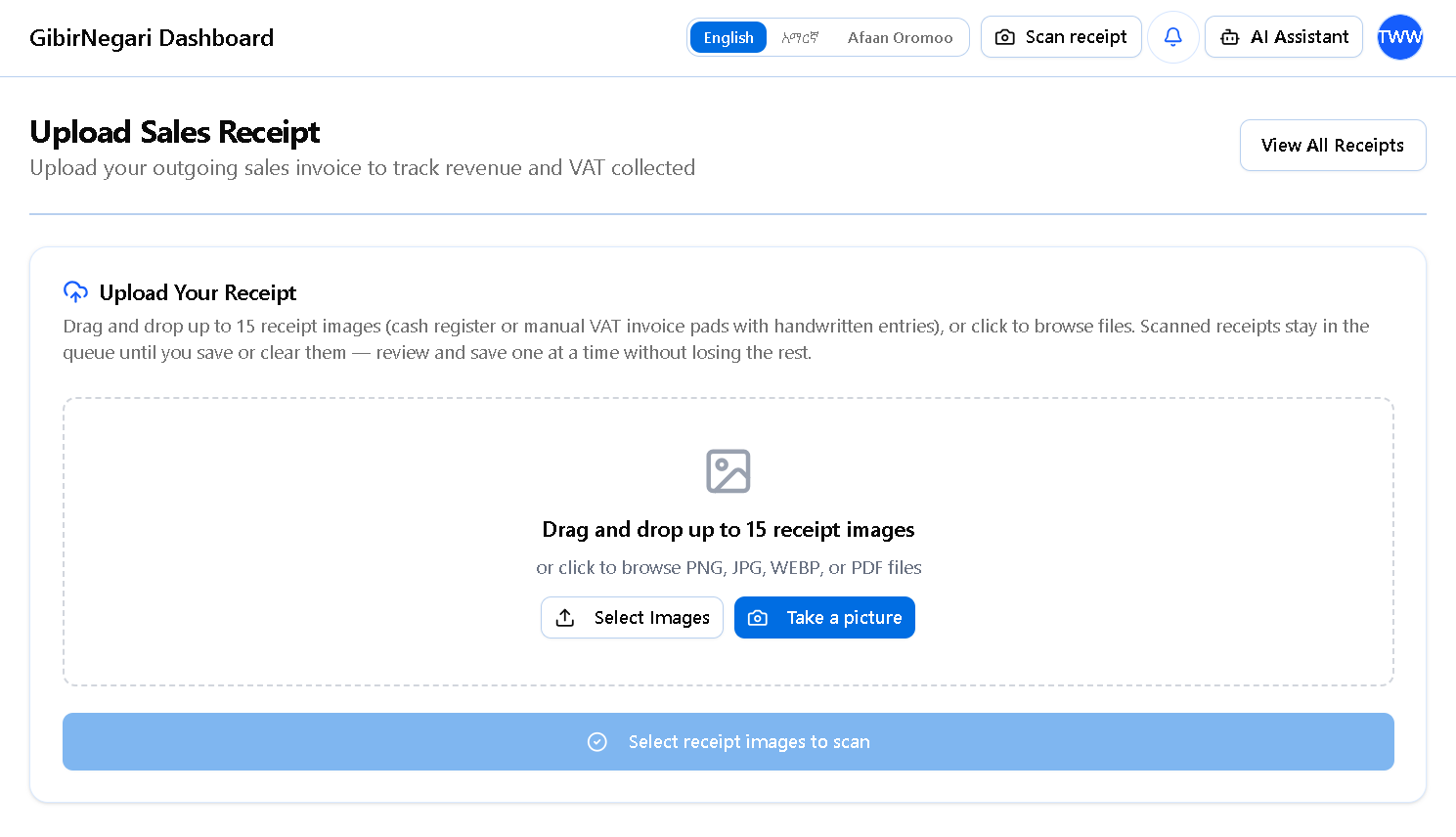
The Upload Receipt page where you can drag and drop receipt images for AI-powered data extraction.
- "View All Receipts" Button: Located at the top, this button takes you to the queue where you can view all the receipts you have uploaded and their current AI processing status.
- "Select Images" Button / Drag & Drop Area: Click this to open your device's file browser and choose existing photos of receipts, or simply drag and drop up to 15 images directly into the area.
- "Take a picture" Button: Opens your device's camera so you can snap a photo of a physical receipt directly into the system.
- Once images are provided, the AI robot scans them to automatically extract details (Customer TIN, Receipt Number, Tax Amounts). Because they stay in the queue, you can safely review and save them one by one.
2Add New Sales Manually Page
Use this page to manually enter a single sales receipt and its line items, or to upload multiple sales via a CSV spreadsheet.
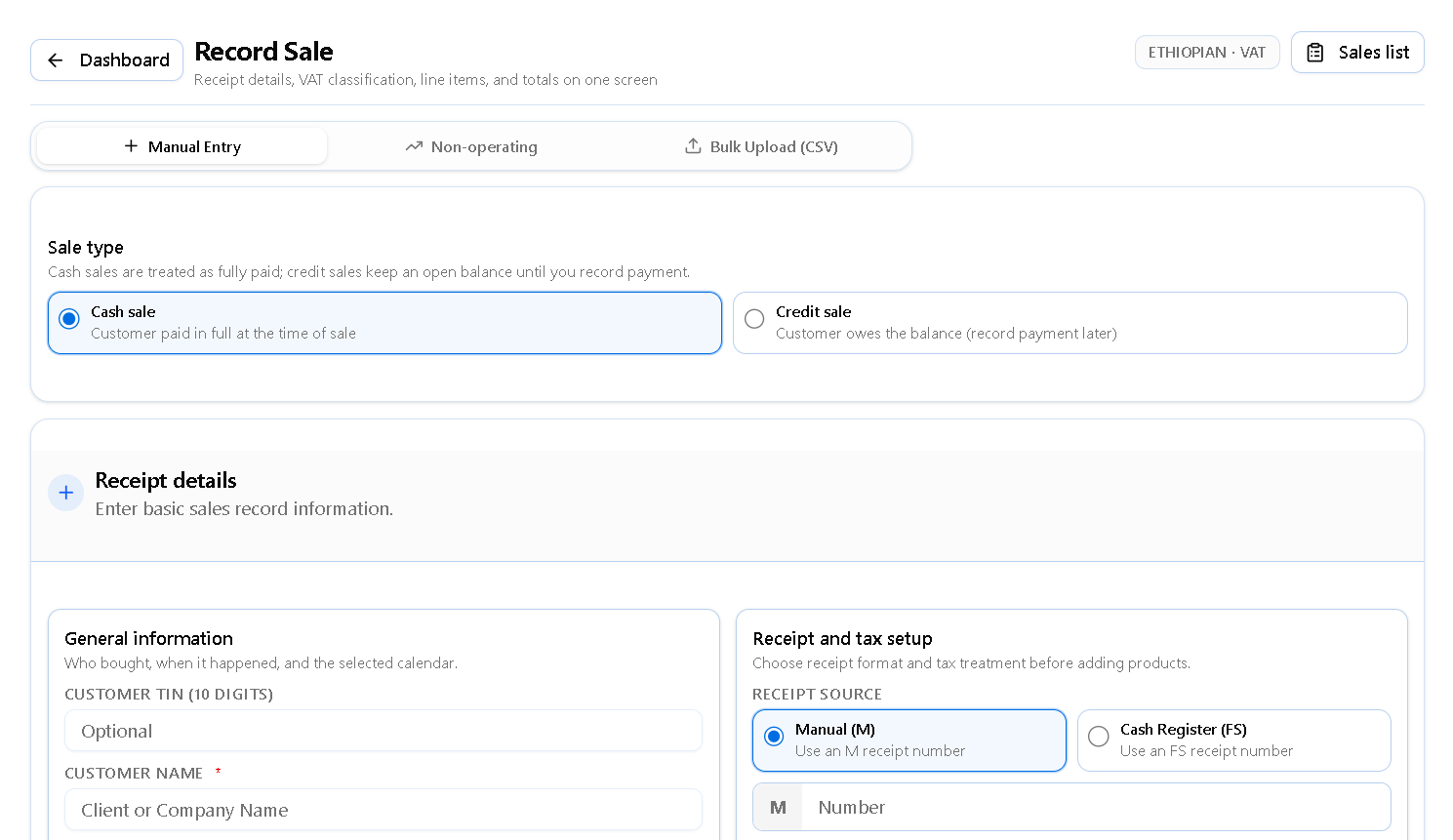
The Add New Sales Manually page for entering individual sale records or bulk uploading via CSV.
- "Manual Entry" Toggle: Switches the view to let you type in the details of a single sale.
- "Bulk Upload CSV" Toggle: Switches the view to a drag-and-drop zone where you can upload a CSV file of multiple sales at once. You also have a "Download Template" button here to get the correct spreadsheet format.
- "Sale Type" Radio Buttons: Choose whether the transaction is a Cash Sale or a Credit Sale.
- "Receipt Source" Radio Buttons: Select between a Manual Receipt or a Cash Register Receipt (which will prompt you for the machine's MRC Number).
- "VAT Classification" Dropdown: Select whether the sale is Taxable, Reverse Taxation, Zero-Rated, or Exempt.
- "VAT Withholding" Toggle: Enables you to enter the Withholding Agent's TIN and Receipt Number if tax was withheld at the source.
- "Add Item" Button: Adds a new blank row to the line items table for another product or service. Each line lets you set quantity, unit price, and a 3% withholding tax rate if applicable.
- "Clear Form" Button: Resets all inputs so you can start over.
- "Record Sale" Button: Saves your entry to the sales module for your records without touching the accounting ledger yet.
- "Record & Post to GL" Button: Finalizes the sale and immediately posts it to your General Ledger for accounting purposes.
3View Sales Page
This is your main dashboard for tracking all sales records, searching for specific invoices, and managing drafts vs. posted entries.
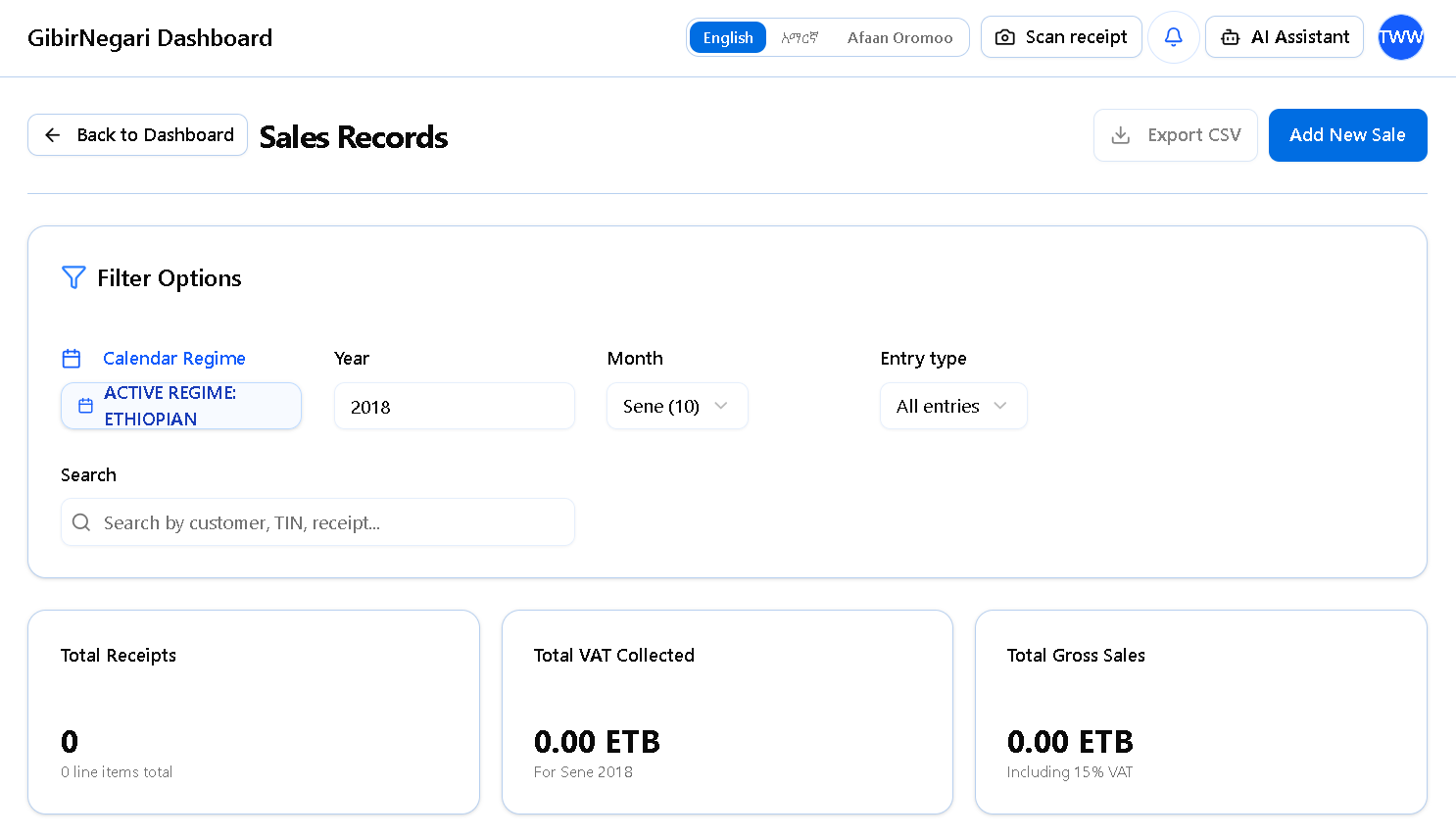
The View Sales dashboard for tracking, filtering, and managing all your sales records.
- "Add New Sale" Button: Located at the top, clicking this immediately redirects you to the manual entry page to record a new transaction.
- "Export CSV" Button: Downloads your currently filtered list of sales into a CSV file for your own records or auditing purposes.
- "Filter Options" & Search: Use the Year and Month dropdowns to filter sales by the active calendar regime. The search bar lets you instantly find a specific sale by typing a Customer Name, Receipt Number, or TIN.
- "View Modes" Toggle: Switch between "Lines View" (showing individual products/services sold) and "Receipts View" (grouping items by their receipt number).
- "Edit", "Delete", & "VAT WHT" Buttons: Available on "Draft" (unposted) entries. Click Edit to modify the sale, Delete to remove it, or VAT WHT to manage withholding tax details.
- "Pay" / "Record Payment" Button: Available on "Posted" invoices that are unpaid or partially paid. Clicking this opens a modal to record the amount paid, payment date, method, and reference number.
- Bulk Actions & "Post to GL": Select multiple draft entries using the checkboxes, then click the "Post to GL" button at the top to finalize and post them to your General Ledger simultaneously, or the "Delete Selected" button to remove them.
Deleting Sales Records
To maintain strict accounting integrity, the system enforces specific criteria on when and how a sales record can be deleted.
- You can only delete "Draft" (unposted) entries.
- Once a sale is marked as "Posted" to the General Ledger, it is permanently locked to prevent accidental manipulation of your financial books. It cannot be deleted.
- Go to the View Sales page.
- Locate the specific "Draft" sale you want to remove.
- Click the "Delete" (Trash icon) button on the right side of that row.
- Go to the View Sales page.
- Use the checkboxes on the left side of the table to select multiple "Draft" entries.
- Click the red "Delete Selected" button that appears at the top of the table.
4Sales Analytics Page
This page provides visual insights and charts representing your business performance and revenue trends over the selected fiscal year.
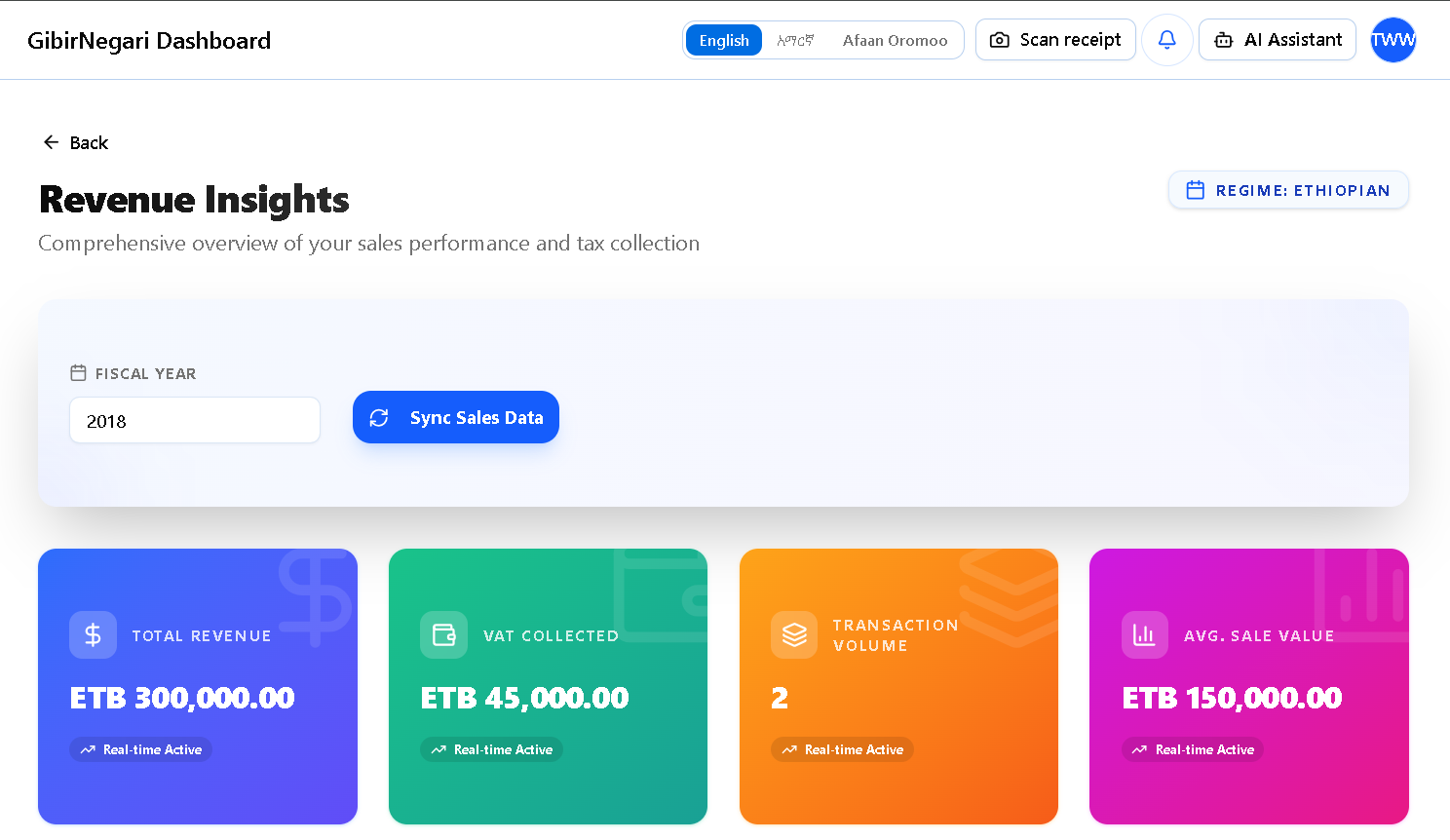
The Sales Analytics dashboard for visualizing your business performance and revenue trends.
- "Fiscal Year" Filter & Sync: Enter a specific year (Ethiopian or Gregorian depending on your settings) and click the "Sync Sales Data" button to refresh all charts.
- KPI Summary Cards: Quickly view your Total Revenue, Total VAT Collected, Transaction Volume, and Average Sale Value for the year.
- "Revenue Performance" Area Chart: Visualizes the month-by-month trends for Net Revenue and VAT Collected. You can hover over the graph for exact data points.
- "Key Contributors" Doughnut Chart: Displays a breakdown of your top 5 customers, showing exactly what percentage of your total revenue they represent.
- "Comparative Monthly Analysis" Table: A granular, month-by-month table detailing Net Revenue, VAT, Gross Sales, Transaction Volume, and your precise Month-over-Month Growth percentage with clear positive/negative trend indicators.
Easy Ways to Enter Sales Data
Take a Photo (AI Scanner)
Instead of typing everything by hand, you can just take a picture of your physical receipt. Our smart AI robot will read the picture and automatically fill out the boxes for you, including:
- The customer's Tax ID (TIN)
- The receipt number and date
- The total price and the tax amount
Note: Your plan decides how many photos you can scan per month.
Upload a Spreadsheet
If your business has hundreds of sales a day (like a supermarket or an online store), typing them one by one takes too long.
- Download our simple Excel template.
- Paste all your sales into the spreadsheet at once.
- Upload it back to us. The system checks the whole list for mistakes instantly and saves them all in one click.