HR & Payroll
Manage your workforce and automate monthly salary calculations with built-in tax and pension compliance.
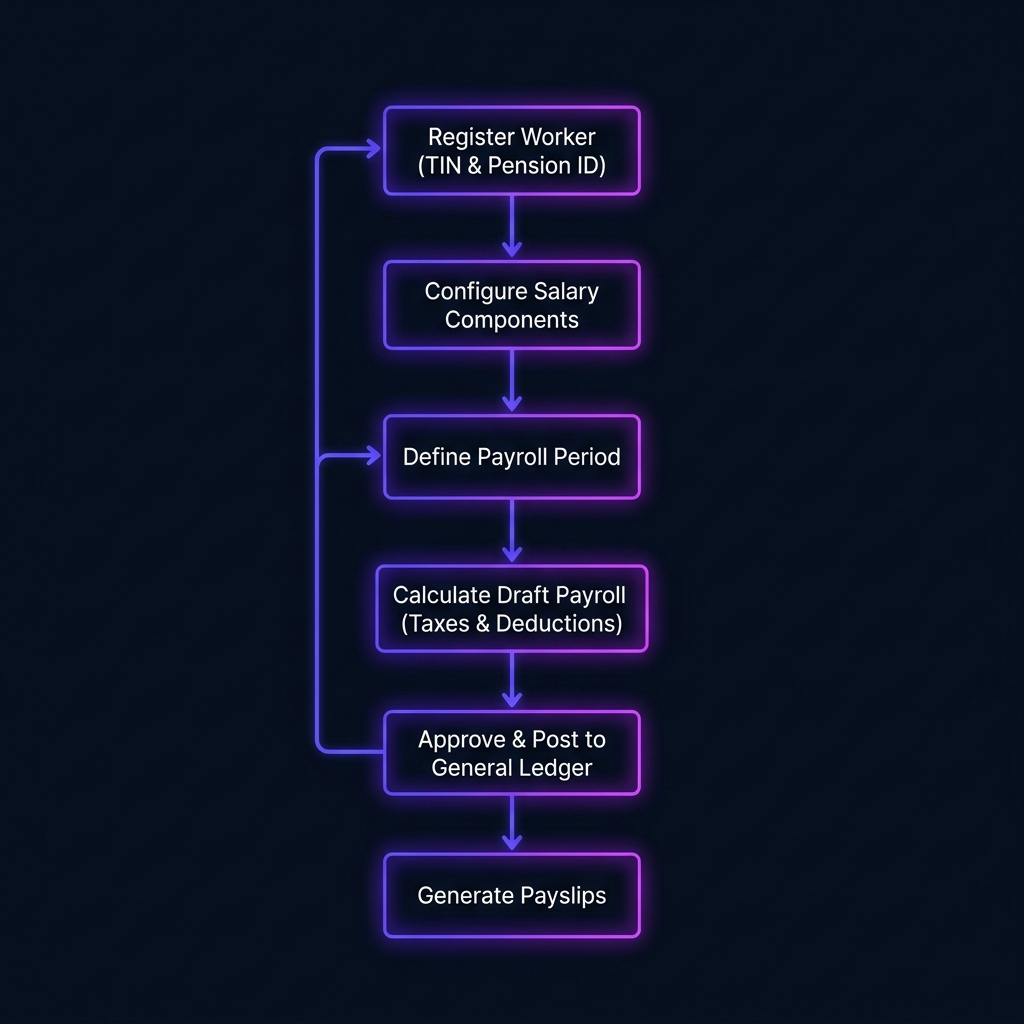
Visualizing the HR and Payroll lifecycle: Register Worker → Configure Salary → Define Period → Calculate Draft → Post to Ledger → Generate Payslips.
Worker Registry
A centralized database for all employee records, including personal, contact, and government identifiers.
Pension ID Tracking
Mandatory for accurate pension reporting. The system tracks both employee and employer contributions.
TIN Management
Store worker Tax Identification Numbers for individual income tax returns.
Step-by-Step: Register a Worker
- Navigate to HR → Workers from the sidebar.
- Click "Add Worker" and fill in personal details (name, gender, DOB).
- Enter mandatory identifiers: TIN and Pension ID for tax & pension compliance.
- Save the record – the system assigns a unique employee number.
Payroll Processing
Automate the monthly payroll run. The system calculates net pay, tax payables, and pension deductions in one go.
Payroll Workflow
Salary Components
Flexible configuration for different types of earnings and deductions.
Taxable Earnings
- • Basic Salary
- • Overtime Pay
- • Taxable Transport Allowance
- • Performance Bonus
Non-Taxable / Exempt
- • Exempt Transport Allowance
- • Per Diem / Travel Expense
- • Pension Contribution (Exempt)
HR & Payroll Operations
Below are the core workflows you will follow to manage workers, set up compensation, and run payroll each month.
ARegister a Worker
- Navigate to HR → Workers from the sidebar.
- Click "Add Worker" and fill in personal details (name, gender, DOB).
- Enter mandatory identifiers: TIN and Pension ID for tax & pension compliance.
- Save the record – the system assigns a unique employee number.
BConfigure Salary Components
- Go to HR → Salary Components.
- Define taxable earnings (Basic Salary, Overtime, Taxable Transport, Bonus).
- Define non‑taxable items (Exempt Transport, Per Diem, Pension Contributions).
- Set mandatory deduction rates (e.g., employee pension %).
- Assign the appropriate component set to each worker in their profile.
CRun Monthly Payroll
- Enter the payroll period (e.g., May 2026) in HR → Payroll.
- Click "Generate Payroll" – the engine calculates net pay, tax, pension, and other deductions for all active workers.
- Review the draft payroll table for any anomalies.
- When satisfied, click "Approve & Post". This creates corresponding journal entries in the General Ledger and generates PDF payslips.
DPost‑Payroll Administration
- Access payslips via the Payslips tab – download or email them to employees.
- Use the "Void" action on any draft payroll if corrections are needed before posting.
- For already posted periods, you can "Reverse" the payroll which creates a balancing journal entry, preserving an audit trail.
Page Interactions & Features
Here is a detailed breakdown of what you can do on each of the main pages within the HR & Payroll module and the features available through various buttons.
1Workers Page
Your centralized employee database and personnel registry.
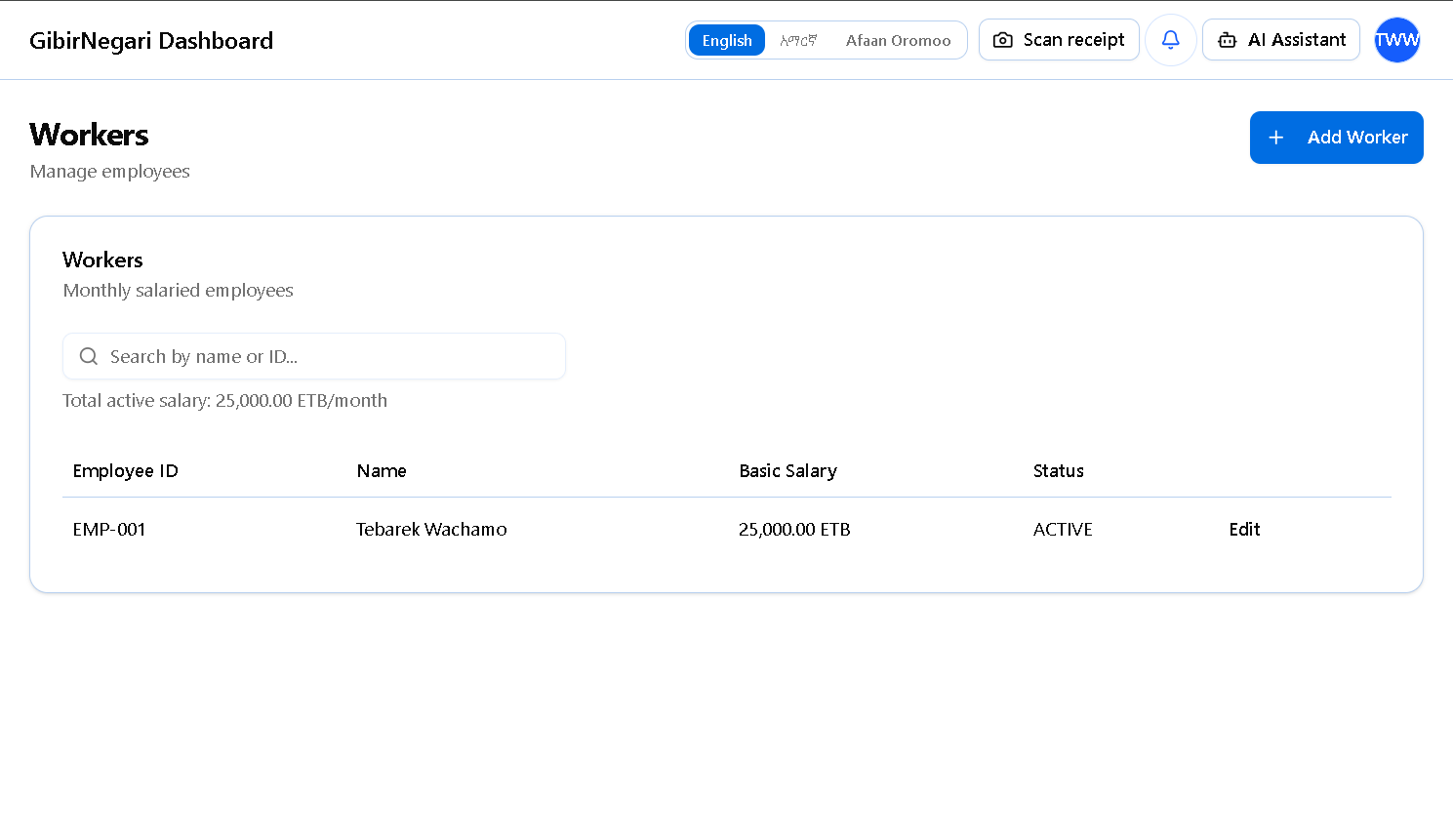
The Workers registry page for managing your employee database and personnel records.
- What it Shows: A comprehensive list of all staff members. Columns include Employee ID, Full Name, Department/Role, Base Salary, and compliance identifiers like TIN and Pension ID. It also shows the worker's current Status (Active or Inactive).
- "Add Worker" Button: Opens a detailed registration form. You input their personal details, contact information, date of hire, and critically, their tax and pension identifiers. This is also where you define their base salary.
- Edit (Pencil) Icon: Allows you to update a worker's profile (e.g., if they get a raise or change their bank account details).
- Deactivate/Terminate Action: Used when an employee leaves the company. It preserves their historical payroll records for audits but removes them from future automated payroll generation cycles.
- Worker Profile View: Clicking on a specific worker shows their complete history, including past payslips, active salary components (like allowances), and personal documents.
2Payroll Page
The engine room where monthly salaries, taxes, and deductions are calculated and finalized.
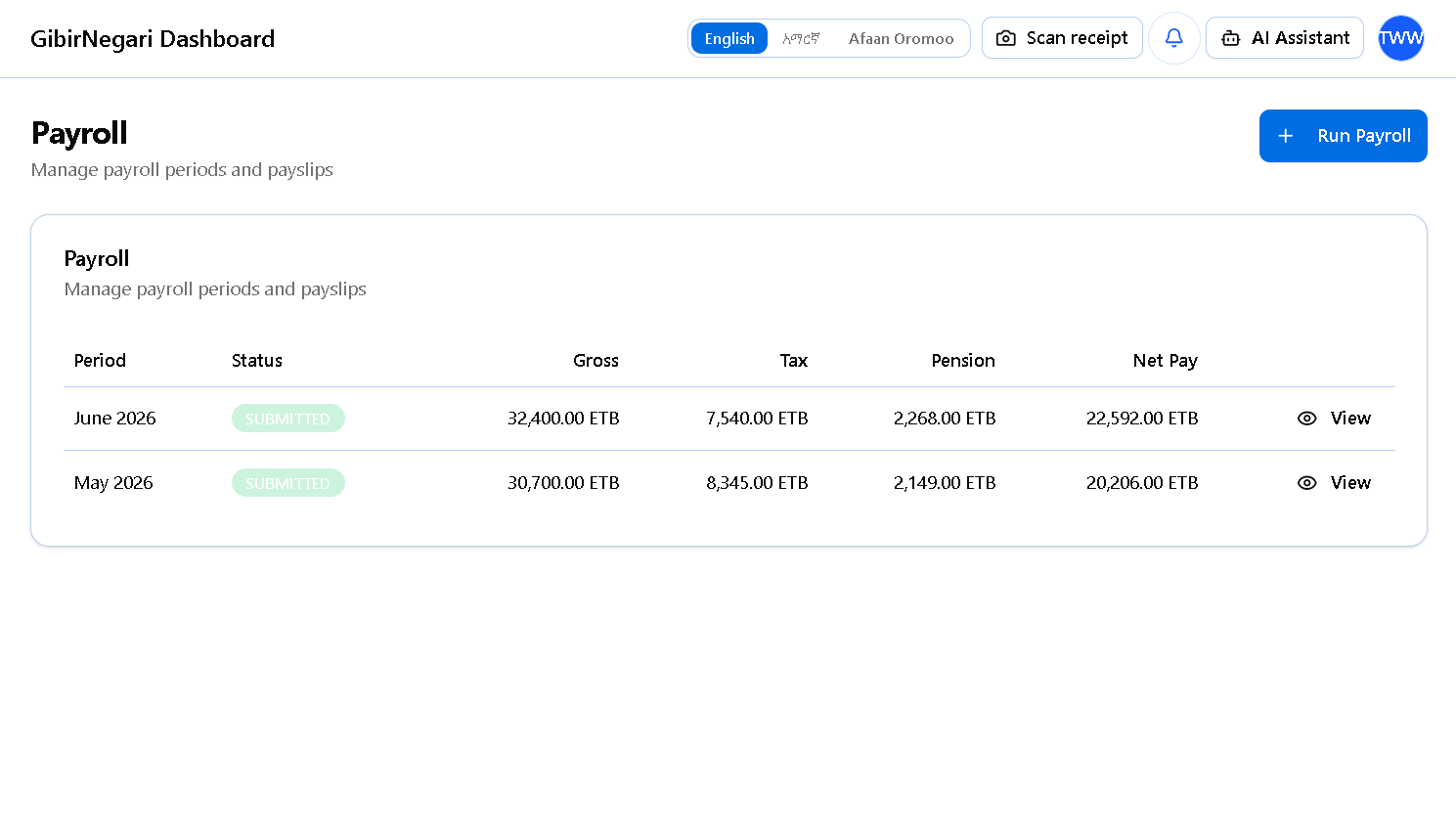
The Payroll processing page for calculating salaries, taxes, and generating payslips.
- What it Shows: A dashboard of all payroll periods (e.g., "Megabit 2016", "Miazia 2016"). When you click into a specific period, it displays a massive grid detailing every employee's Gross Pay, Taxable Income, Income Tax Deducted, Pension (7% Employee share), and final Net Pay.
- "Generate Payroll" Button: The core automation trigger. You select a month, and the system instantly calculates the exact tax brackets and pension math for every active worker based on their configured salary and allowances.
- "Approve & Post" Button: Locks the draft payroll. Crucially, this button automatically communicates with the Accounting module, generating a massive journal entry that debits Salary Expense and credits Cash/Bank, Income Tax Payable, and Pension Payable.
- "Payslips" Button: Generates individual, printable PDF payslips for every employee on the roster, breaking down exactly how their net pay was calculated.
- "Void" / "Reverse" Actions: If a mistake is caught while the payroll is in "Draft", you can Void and regenerate it. If it has already been Posted, you must use Reverse to maintain strict accounting audit trails.
3Reports Page
Your government compliance dashboard for ERCA (tax) and POESSA (pension) submissions.
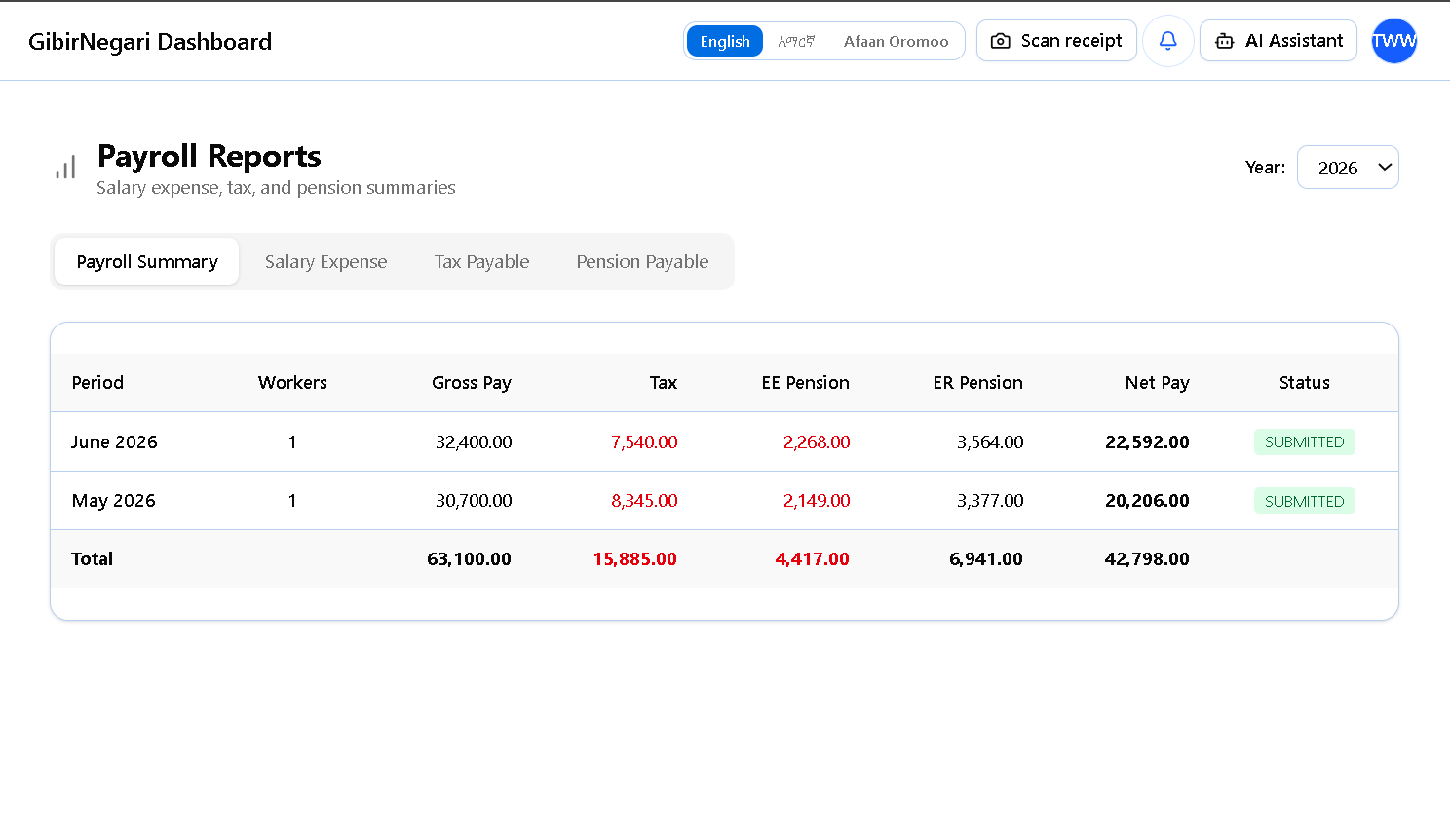
The Payroll Reports page for generating tax declarations, pension reports, and compliance documents.
- What it Shows: Specialized reporting formats required by Ethiopian authorities. It aggregates the data from your posted payrolls into official templates.
- "Generate Tax Report (Schedule 1)" Button: Compiles the monthly employment income tax declaration. It lists every employee's TIN, gross income, and tax withheld, matching the exact format required by the ERCA eTax portal.
- "Generate Pension Report" Button: Compiles the monthly pension declaration. It lists every employee's Pension ID, basic salary, the 7% deducted from their pay, and the 11% contributed by the employer, showing the total 18% due to the pension agency.
- Export Options: One-click buttons to download these reports as Excel spreadsheets or PDFs, allowing you to easily copy-paste the data into government portals or print them for physical branch submission.
4Settings
The configuration backend where you link the HR module to your General Ledger and define custom pay rules.
- What it Shows: Configuration panels for Salary Components (Allowances/Deductions) and Accounting Mappings.
- "Add Salary Component" Button: Allows you to create custom pay items beyond basic salary. You can create a "Transport Allowance", define it as a fixed amount or percentage, and critically, toggle whether it is Taxable or Non-Taxable under Ethiopian law.
- Accounting Mappings Panel: A series of dropdowns where you must explicitly tell the payroll engine which Chart of Accounts buckets to use. You link the "Salary Expense Account", the "Income Tax Payable Liability Account", and the "Pension Payable Liability Account". Without this, the "Approve & Post" button in Payroll will not know where to send the financial data.