Tax Automation (eTax & TASS)
Eliminate manual filing errors with our deep integration into government tax portals.
eTax Portal Sync (Government Integration)
📌 Quick Definition
eTax Portal Sync is the automatic connection between Gibir-Negari and the official Ethiopian government eTax portal. It synchronizes your filing periods, deadlines, and tax return statuses in real-time.
🎯 What It Does
The eTax Portal Sync automatically connects to the government's eTax system using your encrypted credentials. It fetches the latest filing periods, deadlines, submission numbers, and assessment results. This means you always have the most current information from the government without manually checking the portal.
❓ Why You Need It
- Never Miss Deadlines: Automatic sync ensures you always know when taxes are due.
- Accurate Filing Periods: The system knows exactly which periods the government recognizes.
- Real-Time Status: See if your previous returns were accepted or rejected by ERCA.
- Compliance Assurance: Filing periods are always aligned with government requirements.
- Reduce Manual Work: No need to manually check the eTax portal every day.
How It Works Behind the Scenes
Step 1: Authentication
When you set up eTax credentials in Settings, Gibir-Negari encrypts them using AES-256-GCM encryption. These credentials are never stored in plain text and are only used by background workers to authenticate with the government portal.
Step 2: Periodic Sync
Background workers (running on your server) periodically connect to the eTax portal using your credentials. They fetch:
- Available filing periods (e.g., Meskerem, Tikimit, etc.)
- Filing deadlines for each period
- Status of previously submitted returns
- Assessment results from ERCA
Step 3: Local Update
The fetched data is stored in your local database. Your dashboard and tax filing pages are updated to reflect the government's current requirements. This happens automatically without any action from you.
Step 4: Notification
If a new filing period becomes available or a deadline is approaching, you receive a notification. If a return was rejected, you're alerted immediately so you can correct and resubmit.
Real-World Example:
It's the 5th of Tikimit (October). You open Gibir-Negari and see:
- ✅ Meskerem VAT return: Submitted and Accepted by ERCA
- ⏰ Tikimit VAT return: Due by 15th Tikimit (deadline in 10 days)
- 📋 Hidar VAT return: Available for filing (opens on 1st Hidar)
All this information came from the eTax portal automatically. You didn't have to log in to the government portal yourself.
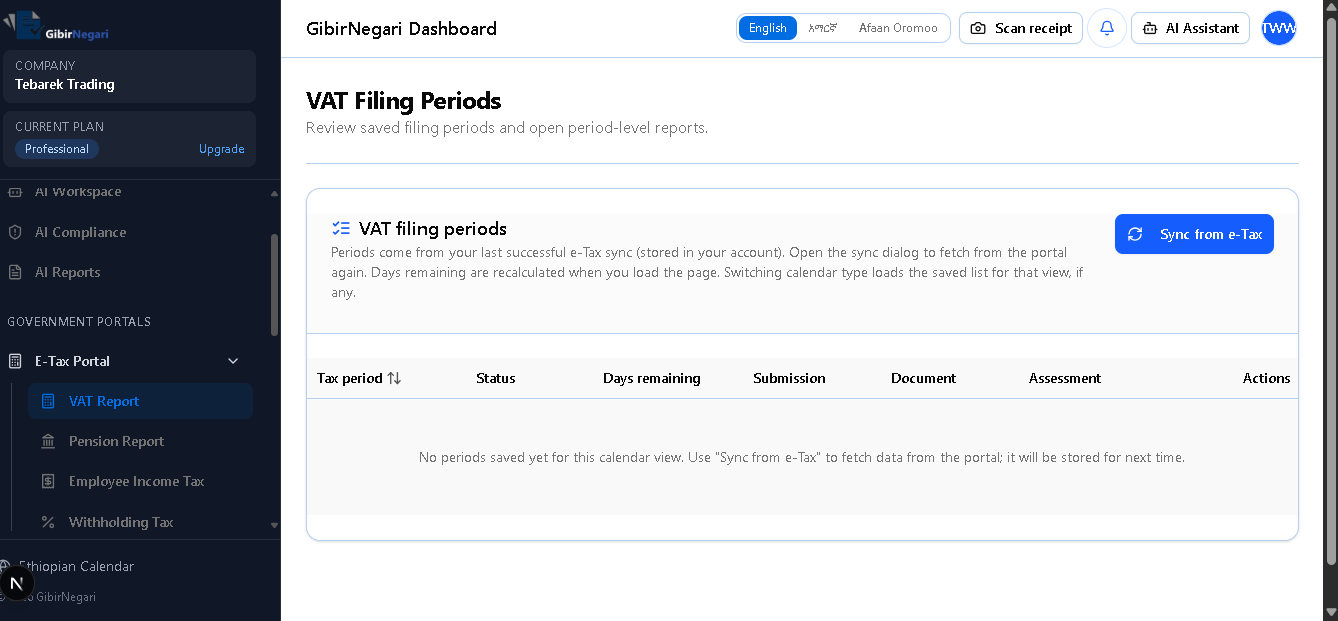
The VAT Filing Periods page where you sync filing periods from the eTax portal.
Step-by-Step Operations
Here are the common operations for setting up and using eTax Portal Sync.
ASet Up eTax Credentials
- Navigate to Settings → eTax Integration.
- Enter your official eTax Username (usually your TIN or email).
- Enter your official eTax Password (the one you use to log into the government portal).
- Click "Save Credentials". The system will encrypt and securely store them.
- You will see a confirmation message: "Credentials saved successfully."
BManually Trigger a Sync
- Navigate to Taxes → VAT Monthly Returns (or TOT/WHT/Pension).
- Click the "Sync with eTax" button (usually at the top right).
- The system will authenticate with the eTax portal and fetch the latest filing periods.
- You will see a loading indicator while the sync is in progress (usually 10-30 seconds).
- Once complete, you will see a success message and the page will refresh with new periods.
CView Synced Filing Periods
- Navigate to Taxes → VAT Monthly Returns.
- You will see a list of all available filing periods from the eTax portal.
- Each period shows:
- Period Name: e.g., "Meskerem 2016"
- Status: "Not Started", "In Progress", "Submitted", "Accepted", or "Rejected"
- Deadline: The date by which you must file
- Submission Number: If already submitted, the government's reference number
DHandle Sync Errors
- If you see an error like "Failed to connect to eTax portal", check:
- Your eTax credentials are correct (try logging into the portal manually)
- Your internet connection is working
- The eTax portal is not down for maintenance
- If the error persists, contact support with the error message.
EUpdate eTax Credentials
- If you change your eTax password, you must update it in Gibir-Negari.
- Navigate to Settings → eTax Integration.
- Enter your new password and click "Update Credentials".
- The system will test the new credentials by attempting a sync.
- If successful, you will see: "Credentials updated and verified."
⚠️ Important Security Notes
- Credentials are encrypted: Your eTax password is never stored in plain text. It's encrypted using AES-256-GCM.
- Credentials are never shared: Your credentials are only used by background workers on your server to authenticate with the eTax portal.
- Credentials are never logged: Your password is never written to logs or error messages.
- Change password regularly: If you suspect your eTax password has been compromised, change it immediately and update it in Gibir-Negari.
eTax Filing (VAT, TOT, WHT, Income Tax)
📌 Quick Definition
eTax Filing is the automated process of submitting your tax returns directly to the Ethiopian government's eTax portal. Gibir-Negari calculates your taxes, formats them according to government requirements, and submits them on your behalf.
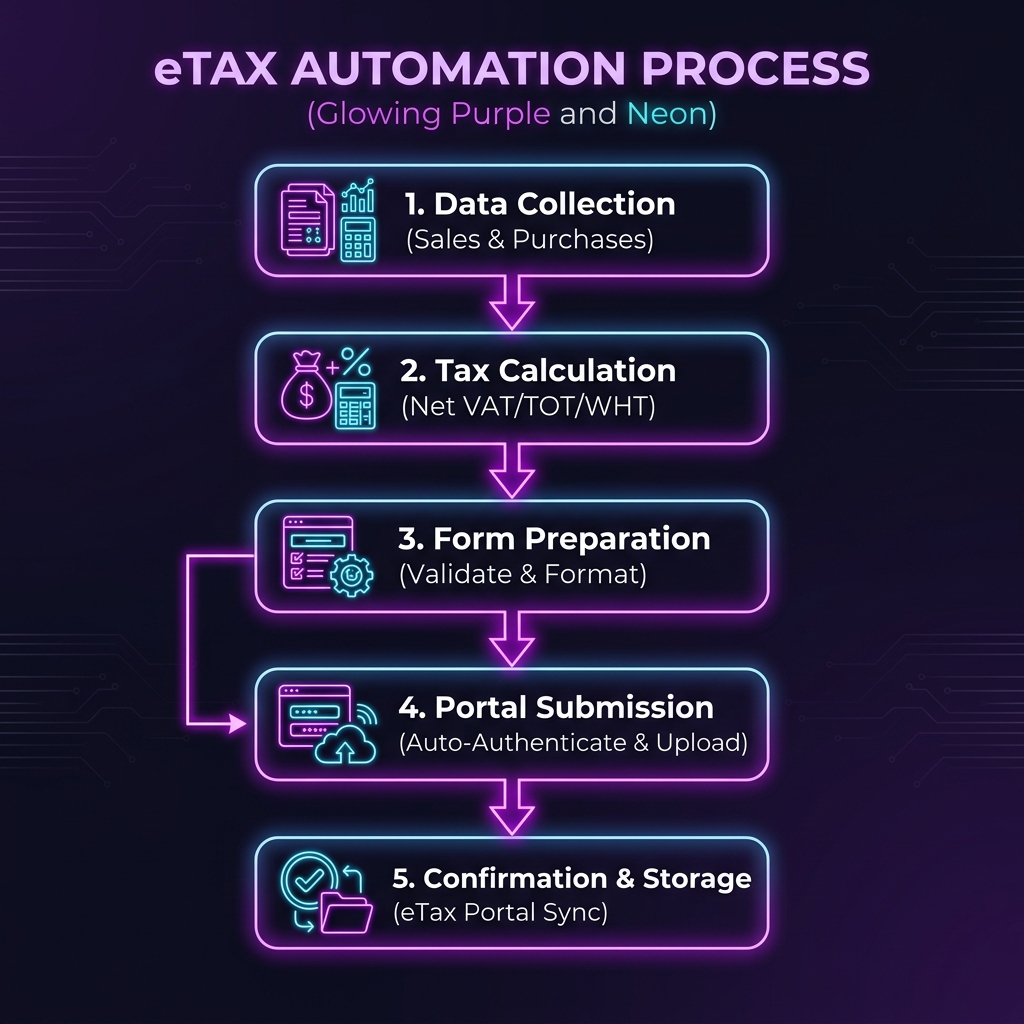
Visualizing the eTax Automation process: Data Collection → Tax Calculation → Form Preparation → Portal Submission → Confirmation & Storage.
🎯 What It Does
eTax Filing automates the entire tax submission process. Instead of manually logging into the government portal and entering numbers, Gibir-Negari:
- Calculates your taxes based on your transactions
- Formats the data according to ERCA's exact requirements
- Submits the return to the government portal
- Receives confirmation and submission numbers
- Stores the submission for your records
❓ Why You Need It
- Save Time: Filing takes minutes instead of hours of manual data entry.
- Reduce Errors: Automated calculations eliminate manual mistakes that lead to penalties.
- Never Miss Deadlines: File automatically before the deadline passes.
- Audit Trail: Every submission is recorded with confirmation numbers.
- Compliance: Ensure your returns meet ERCA's exact formatting requirements.
Tax Types Supported
📊 VAT (Value Added Tax)
Monthly VAT returns filed with ERCA. The system automatically:
- Calculates output VAT (15% on sales)
- Calculates input VAT (15% on purchases)
- Tracks VAT withheld by agents (7.5%)
- Calculates net VAT due or credit
- Fills all 201 lines of the VAT form
🏪 TOT (Turnover Tax)
For businesses below VAT threshold. The system:
- Applies 2% rate for goods
- Applies 10% rate for services
- Calculates monthly TOT liability
- Submits simplified returns
💼 WHT (Withholding Tax)
Tracks taxes withheld from suppliers. The system:
- Aggregates 2% withholdings on purchases
- Aggregates 3% withholdings on services
- Calculates total WHT liability
- Submits monthly WHT returns
👥 Income Tax
For employee salaries. The system:
- Calculates PAYE (Pay As You Earn)
- Tracks employee income tax
- Submits monthly income tax returns
- Integrates with payroll module
How eTax Filing Works
Step 1: Data Collection
Gibir-Negari collects all your transactions for the filing period:
- All sales (with VAT breakdown)
- All purchases (with VAT breakdown)
- All withholdings made
- All credits and adjustments
Step 2: Tax Calculation
The system calculates your tax liability:
- Output VAT = Total sales × 15%
- Input VAT = Total purchases × 15%
- Net VAT = Output VAT - Input VAT - Withholdings
- Amount Due = Max(0, Net VAT)
Step 3: Form Preparation
The system formats the data into the government's required format:
- Fills all required fields in the VAT form (lines 5-205)
- Validates all calculations
- Ensures all required documents are attached
- Prepares the submission package
Step 4: Portal Submission
Gibir-Negari submits the return to the eTax portal:
- Authenticates with your eTax credentials
- Uploads the formatted return
- Receives confirmation from the government
- Stores the submission number
Step 5: Confirmation & Storage
The system records the submission:
- Stores the government's submission number
- Records the submission date and time
- Saves a copy of the submitted return
- Updates your dashboard with status
Real-World Example - VAT Filing:
Scenario: It's the 10th of Tikimit. You need to file your Meskerem VAT return.
Your transactions in Meskerem:
- Sales: 100,000 Birr (includes 15% VAT = 13,043 Birr)
- Purchases: 50,000 Birr (includes 15% VAT = 6,522 Birr)
- Withholding paid: 1,000 Birr
Gibir-Negari calculates:
- Output VAT: 13,043 Birr
- Input VAT: 6,522 Birr
- Net VAT: 13,043 - 6,522 - 1,000 = 5,521 Birr
- Amount Due: 5,521 Birr
You click "File VAT Return":
- ✅ System submits to eTax portal
- ✅ Government confirms receipt (Submission #: 2024-001234)
- ✅ Your dashboard shows "Submitted and Accepted"
- ✅ You receive email confirmation
Step-by-Step: Filing a VAT Return
AReview Your Data
- Navigate to Taxes → VAT Monthly Returns.
- Select the period you want to file (e.g., "Meskerem 2016").
- Review the calculated VAT amounts on the preview page.
- Verify all sales and purchases are included.
- If something is wrong, go back and correct your transactions.
BFile the Return
- Click the "File VAT Return" button.
- The system will authenticate with the eTax portal using your credentials.
- You will see a loading indicator while the submission is in progress.
- Once complete, you will see a confirmation message with the submission number.
CTrack Submission Status
- The status will show "Submitted" immediately after filing.
- The system will periodically check the government portal for updates.
- When ERCA accepts your return, the status changes to "Accepted".
- If there are issues, the status changes to "Rejected" with error details.
DHandle Rejection
- If your return is rejected, you will see the error message from ERCA.
- Common reasons: Missing documents, incorrect calculations, late filing.
- Correct the issue (e.g., add missing receipt, fix transaction).
- Click "Resubmit" to file again.
Withholding & Income Tax
Automated generation of withholding tax returns based on purchase records.
Withholding Returns
Aggregates all 2% and 3% withholdings made during the month into a single declaration payload.
Income Tax (Employment)
Directly linked to the Payroll module to ensure salary tax matches the portal's expectations.
TASS Reporting (Purchase Receipt Verification)
📌 Quick Definition
TASS (Tax Administration System) is the government's system for tracking purchase receipts. Gibir-Negari automatically reports your purchase receipts to TASS and verifies their status to ensure compliance and avoid audit penalties.
🎯 What It Does
TASS Reporting automates the process of reporting your purchase receipts to the government:
- Collects all your purchase receipts
- Extracts receipt details (seller TIN, amount, date, etc.)
- Submits receipts to the TASS system
- Tracks the verification status of each receipt
- Alerts you to any receipts that fail verification
❓ Why You Need It
- Compliance: Ethiopian tax law requires all purchase receipts to be reported to TASS.
- Avoid Penalties: Unreported receipts can result in fines and loss of VAT deductions.
- Audit Protection: TASS verification proves your receipts are legitimate.
- Seller Verification: Confirms the seller's TIN is valid and registered.
- Automatic Tracking: No need to manually check TASS status for each receipt.
Receipt Status Types
✅ REPORTED
The receipt has been successfully reported to TASS and verified by the government. This receipt is safe to use for VAT deductions.
⏳ PENDING
The receipt has been submitted to TASS but verification is still in progress. Check back later for the final status.
❌ NOT_REPORTED
The receipt has not been reported to TASS. This is a critical issue. You must report it immediately to avoid audit penalties.
❓ UNKNOWN
The receipt status could not be verified. This may indicate an invalid seller TIN or a system issue. Investigate immediately.
🚫 REJECTED
The receipt failed TASS verification. Reasons: Invalid seller TIN, duplicate receipt, or fraudulent receipt. Do not use for VAT deduction.
📋 MANUAL_ENTRY
This receipt was manually entered (not scanned). It still needs to be reported to TASS for verification.
How TASS Reporting Works
Step 1: Receipt Collection
When you record a purchase in Gibir-Negari, the system captures:
- Receipt number (from the physical receipt)
- Seller name and TIN
- Purchase date
- Purchase amount (before VAT)
- VAT amount
- Total amount paid
Step 2: Seller Verification
Before reporting to TASS, the system verifies the seller:
- Checks if the seller's TIN is valid and registered
- Verifies the seller is VAT-registered (if applicable)
- Flags suspicious TINs or unregistered sellers
- Allows you to correct invalid TINs before reporting
Step 3: TASS Submission
The system submits the receipt to TASS:
- Authenticates with your TASS credentials
- Uploads receipt details to the government system
- Receives a submission confirmation
- Records the submission timestamp
Step 4: Verification Polling
The system periodically checks TASS for verification results:
- Queries TASS for the receipt status
- Updates the receipt status in your system
- Alerts you if status changes to REJECTED
- Marks as REPORTED when verified
Step 5: Alert & Action
If a receipt fails verification:
- You receive an alert with the rejection reason
- The receipt is flagged in your dashboard
- You can correct the seller TIN and resubmit
- Or contact the seller to get a corrected receipt
Real-World Example - TASS Verification:
Scenario: You buy office supplies for 5,000 Birr from a seller.
What happens:
- 📝 You enter the receipt: Seller TIN = 0123456789, Amount = 5,000 Birr
- ✅ System verifies the TIN is valid
- 📤 System submits to TASS
- ⏳ TASS processes the receipt (usually within 24 hours)
- ✅ TASS confirms: "Receipt REPORTED and VERIFIED"
- 💚 Your dashboard shows: Status = REPORTED (green checkmark)
- 💰 You can safely claim the 750 Birr VAT deduction
If something goes wrong:
- ❌ TASS rejects: "Seller TIN not registered"
- 🚨 Your dashboard shows: Status = REJECTED (red X)
- ⚠️ You receive an alert: "Receipt verification failed"
- 🔧 You correct the TIN and resubmit
- ✅ TASS verifies the corrected receipt
Step-by-Step: TASS Verification
ASet Up TASS Credentials
- Navigate to Settings → TASS Integration.
- Enter your TASS Username (usually your TIN).
- Enter your TASS Password (provided by the tax authority).
- Click "Save Credentials".
- The system will test the credentials by attempting a connection.
BRecord a Purchase
- Navigate to Purchases → Add Purchase.
- Enter the seller's name and TIN (from the receipt).
- Enter the purchase amount and date.
- Click "Save".
- The system automatically submits the receipt to TASS.
CView Receipt Status
- Navigate to Purchases → List.
- Find the purchase you want to check.
- Look at the "TASS Status" column.
- Status options: PENDING, REPORTED, REJECTED, UNKNOWN.
- Click on a purchase to see detailed verification information.
DHandle Rejected Receipts
- If a receipt is REJECTED, click on it to see the reason.
- Common reasons: Invalid TIN, Seller not registered, Duplicate receipt.
- Correct the issue (e.g., fix the seller TIN).
- Click "Resubmit to TASS".
- The system will resubmit the corrected receipt.
- Check back in 24 hours for the new status.
ERun Bulk Verification
- Navigate to Taxes → TASS Verification.
- Click "Run Verification" to check all pending receipts.
- The system will query TASS for status updates on all receipts.
- You will see a summary: "X receipts verified, Y receipts rejected".
- Review any rejected receipts and take corrective action.
⚠️ Critical: Unreported Receipts
If you have receipts marked as "NOT_REPORTED" or "REJECTED", you must take immediate action:
- Do not claim VAT deduction: Unreported receipts cannot be used for VAT deductions.
- Audit risk: ERCA may disallow the deduction and impose penalties.
- Correct immediately: Fix the seller TIN or get a corrected receipt from the seller.
- Resubmit: Once corrected, resubmit to TASS for verification.
- Keep records: Save all correspondence with the seller about receipt corrections.
How to Use: eTax & TASS
Step 1: Set Up Credentials
- Navigate to Settings → eTax Integration.
- Enter your official eTax Username and Password.
- The system will encrypt and securely store these credentials for background use.
Step 2: Sync Filing Periods
- Navigate to Taxes → VAT Monthly Returns (or TOT/WHT).
- Click the Sync with eTax button.
- The background job will authenticate with the portal and fetch the latest filing deadlines and expected returns.
- Once complete, your dashboard will reflect the exact filing periods recognized by the government.
Step 3: Verify TASS Receipts
- Ensure you have set up your TASS credentials in Settings.
- Navigate to Taxes → TASS Verification.
- Click Run Verification. The system will cross-check your local purchase receipts against the official TASS database.
- Review the status column. Any receipt marked as "NOT_REPORTED" requires your immediate attention to avoid audit penalties.
Page Interactions & Features
Here is a detailed breakdown of what you can do on each of the main pages within the eTax module and the features available through various buttons.
1VAT Report Page
This page allows you to manage and file your monthly Value Added Tax returns. It automatically aggregates your sales and purchases to calculate your Net VAT.
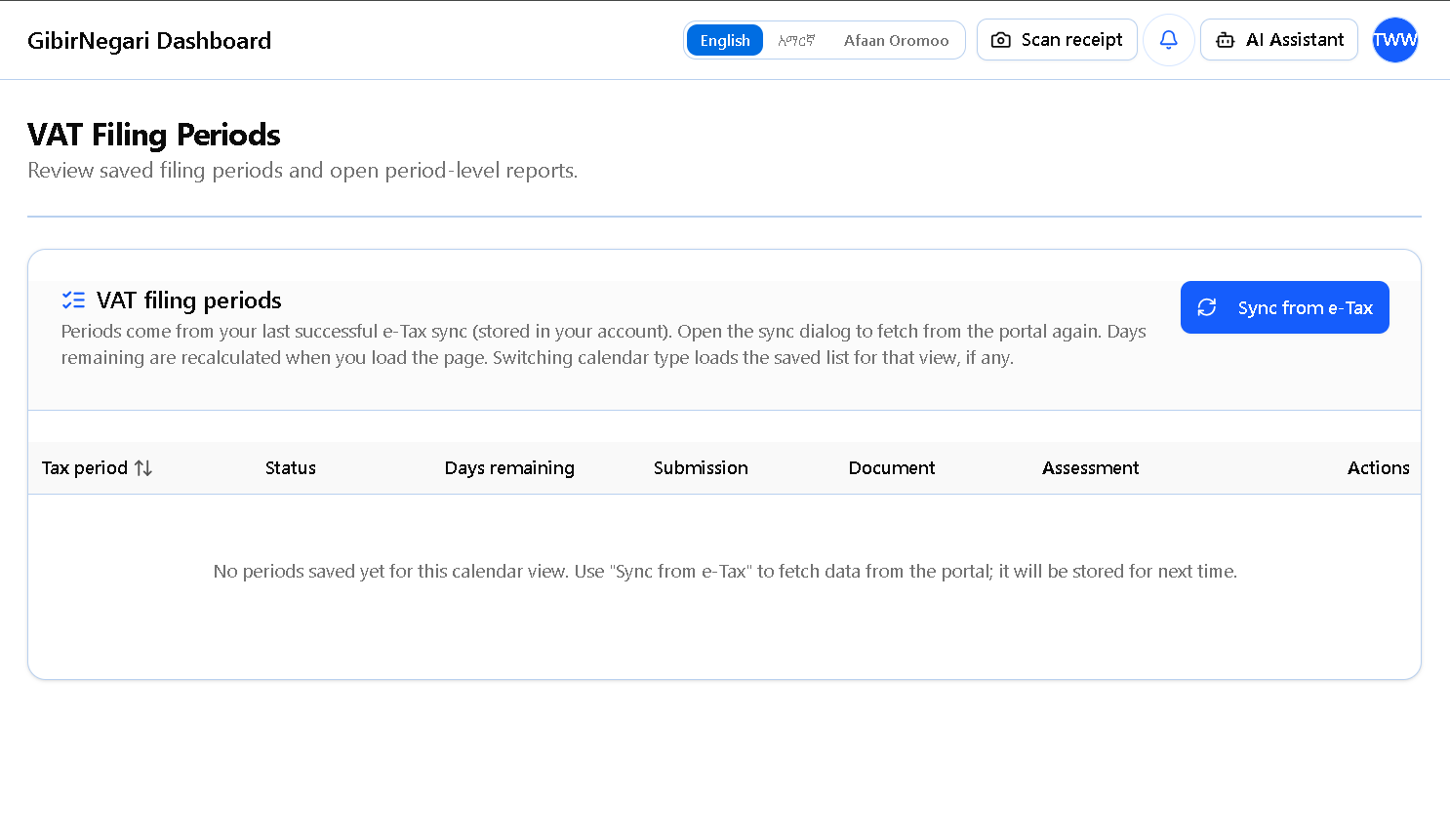
The VAT Report page for managing and filing monthly VAT returns.
- "Sync with eTax" Button: Connects to the government portal to fetch the latest filing periods and update the status of past submissions.
- "View Return" Button: Opens a detailed breakdown of the selected month's VAT calculations, including output VAT, input VAT, and withholdings.
- "Export PDF / Excel" Buttons: Downloads the calculated VAT report for your own records or offline review.
- "File VAT Return" Button: Automatically submits the formatted VAT data directly to the eTax portal.
2Pension Report Page
Use this page to manage employee and employer pension contributions, ensuring alignment with the government's pension agency requirements.
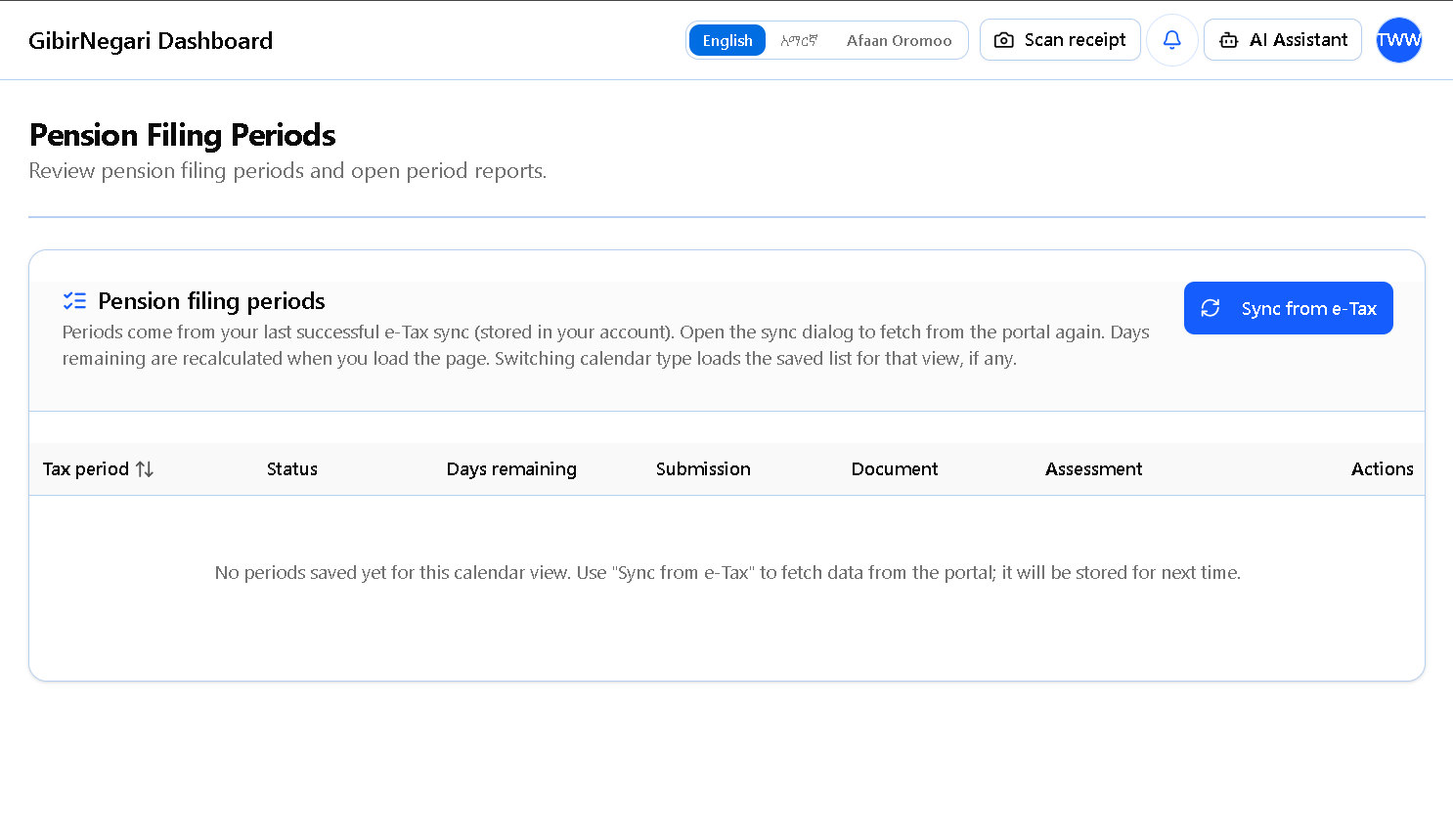
The Pension Report page for managing employee and employer pension contributions.
- "Sync with eTax" Button: Fetches the latest expected pension filing periods from the government system.
- "View Breakdown" Button: Displays a list of all employees and their individual 7% and 11% pension contribution amounts for the period.
- "Export to Excel" Button: Generates a spreadsheet formatted exactly as required by the pension agency.
3Employee Income Tax Page
This page handles the Pay As You Earn (PAYE) income tax for your employees, pulling data directly from the HR & Payroll module.
- "Sync with eTax" Button: Updates your filing periods and checks for any changes in the income tax brackets on the eTax portal.
- "View Details" Button: Shows the detailed salary, taxable income, and calculated tax for each employee.
- "Export Payroll CSV" Button: Downloads the data in the specific CSV format required by ERCA for income tax declaration.
- "File Return" Button: Submits the aggregated income tax data to the government portal.
4Withholding Tax Page
Manage the 2% and 3% taxes you have withheld from your suppliers for goods and services purchased.
- "Sync with eTax" Button: Connects to eTax to retrieve the latest withholding filing periods and submission statuses.
- "View Deductions" Button: Lists all individual purchase transactions where tax was withheld, including the supplier's TIN and the specific amounts.
- "Export Report" Button: Downloads a comprehensive withholding tax schedule for your records.
- "File Return" Button: Transmits the aggregated withholding tax declaration to the eTax system.
5Profit Tax (Yearly) Page
This page calculates your annual business profit tax based on your Profit & Loss statement and standard depreciation rules.
- "Sync with eTax" Button: Fetches your yearly filing deadlines and checks if ERCA has opened the period for annual declarations.
- "Generate Annual Report" Button: Compiles your total revenues, deductible expenses, and calculates the net taxable profit for the fiscal year.
- "Export Financials" Button: Downloads your Profit & Loss and Balance Sheet in formats suitable for attachment to your annual tax return.
6Profit Tax (Quarterly) Page
For businesses that are required to file advance profit taxes every quarter, this page handles the interim calculations.
- "Sync with eTax" Button: Connects to the portal to manage your quarterly filing periods.
- "Generate Quarterly Report" Button: Aggregates your financial data for the specific 3-month period to estimate your profit tax liability.
- "Export Data" Button: Downloads the quarterly figures for review before submission.
7Dividend Tax Preview
Estimate the 10% dividend tax liability before distributing profits to shareholders.
- Calculate Distributable Profit: Automatically deducts the calculated Business Profit Tax from your Net Profit to determine the maximum distributable dividend.
- Dividend Declaration: Enter the percentage of profit you intend to distribute to automatically calculate the 10% dividend tax owed to ERCA.
- Journal Posting: Generates the required double-entry journal postings (Debit Retained Earnings, Credit Dividends Payable & Dividend Tax Payable).
8Message Center Sync
Never miss an important notice from ERCA. The system automatically syncs your eTax inbox directly to your dashboard.
- Auto-Syncing: Periodically checks the government portal for new messages, assessments, or audit notices.
- Direct Viewing: Read official ERCA communications without logging into the eTax portal manually.
- Alerts: Critical messages automatically trigger system notifications to ensure prompt action.